


How to Upscale Desktop Wallpaper with Your Hardware
Article posted on 5/28/2026
Your desktop is the foundation of personalizing your PC. It’s the single largest image you look at every day and while some leave it the default configuration, many will change it almost immediately after setting up a new installation of Windows.
And if you are like us, you have a large collection of wallpapers you have collected over the decades. But older wallpapers tend to be lower resolution and that favorite image from 2010 may not hold up on a modern 4K or higher display.
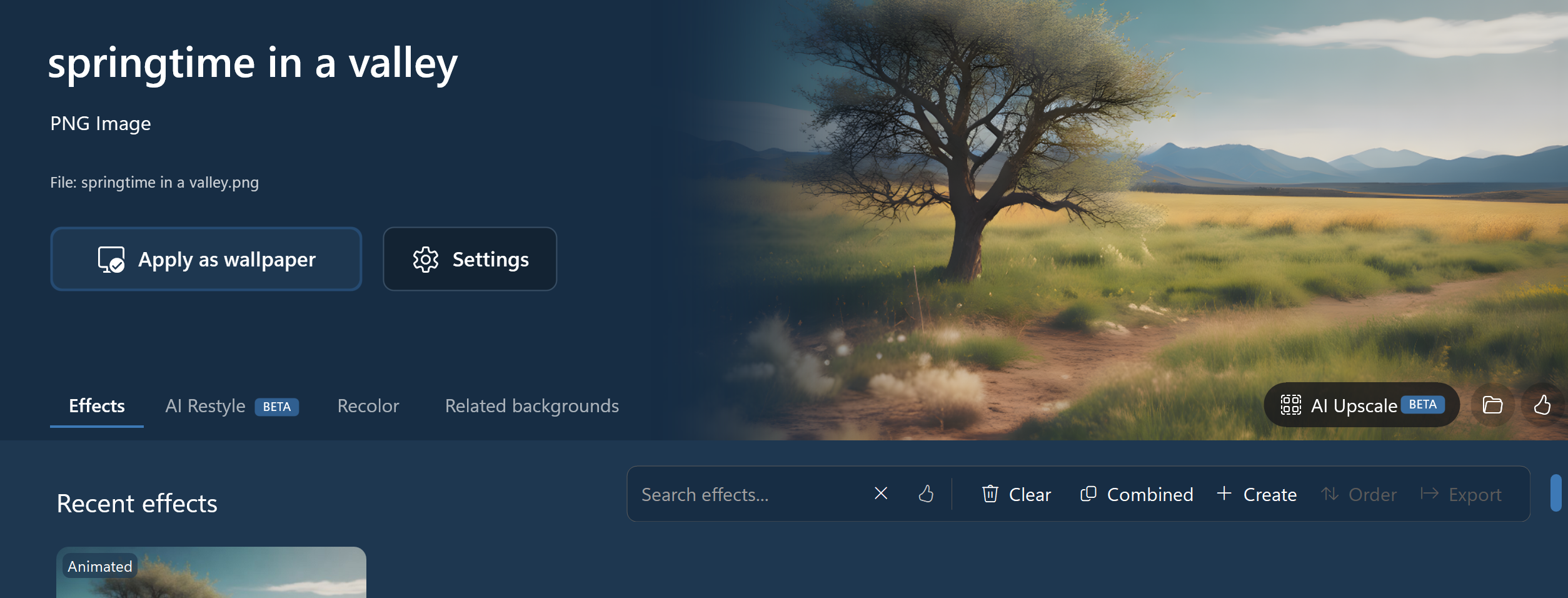
There are a few ways to solve this, you can simply stretch the image using Windows default tools or the better option is to open up DeskScapes 2026 and use the built-in upscaling options. With this feature, you can take a lower resolution image, upscale it to 4k by using your own hardware with no tokens, subscriptions, or giving your image to a third party to process.
The process is simple, open up DeskScapes 2026, select an image and on the right side of the screen, there is an option called AI Upscale. When you select this option, it will upscale the image up to 8k (depending on the source image) using your own hardware.
Depending on your hardware, this will take a few seconds up to a few minutes but it’s all local and fully controlled by you. And for those of you with high-end GPUs, you can easily tap into all that compute to upscale and generate images from scratch with leading image models on your device while those with lower-end specs can take advantage of optimized models that balance compute across the CPU and GPU.
DeskScapes has always been the easiest way to organize, animate, and discover new wallpapers. With the addition of generative and upscaling capabilities, it’s now the one-stop solution for everything you need when it comes to desktop wallpapers.
If you haven’t tried DeskScapes 2026 yet, you can learn more about it on the application page and it’s also included in the award winning suite, Object Desktop.

